Harry Potter Siri Commands: Native Spells vs. Shortcut Setups
Which Harry Potter spells work on Siri out of the box (Lumos and Nox) and how to build working Shortcuts for Silencio, Lumos Maxima, and Accio in two minutes.
Key Takeaways
- Lumos turns your iPhone flashlight on natively and Nox turns it off without any setup.
- Accio [App Name] opens installed apps on iPhone by treating Accio as a launch trigger.
- Silencio and Lumos Maxima fail out of the box without a user-built Shortcut, despite what viral social posts suggest.
- Naming a workflow inside Apple’s Shortcuts app turns any spell phrase into a working voice command in under two minutes.
Spells Apple actually built into Siri
Short-form video clips make it look as if every spell from Hogwarts ships baked into iOS. In truth, Apple coded native support strictly for flashlight toggles and app launching.
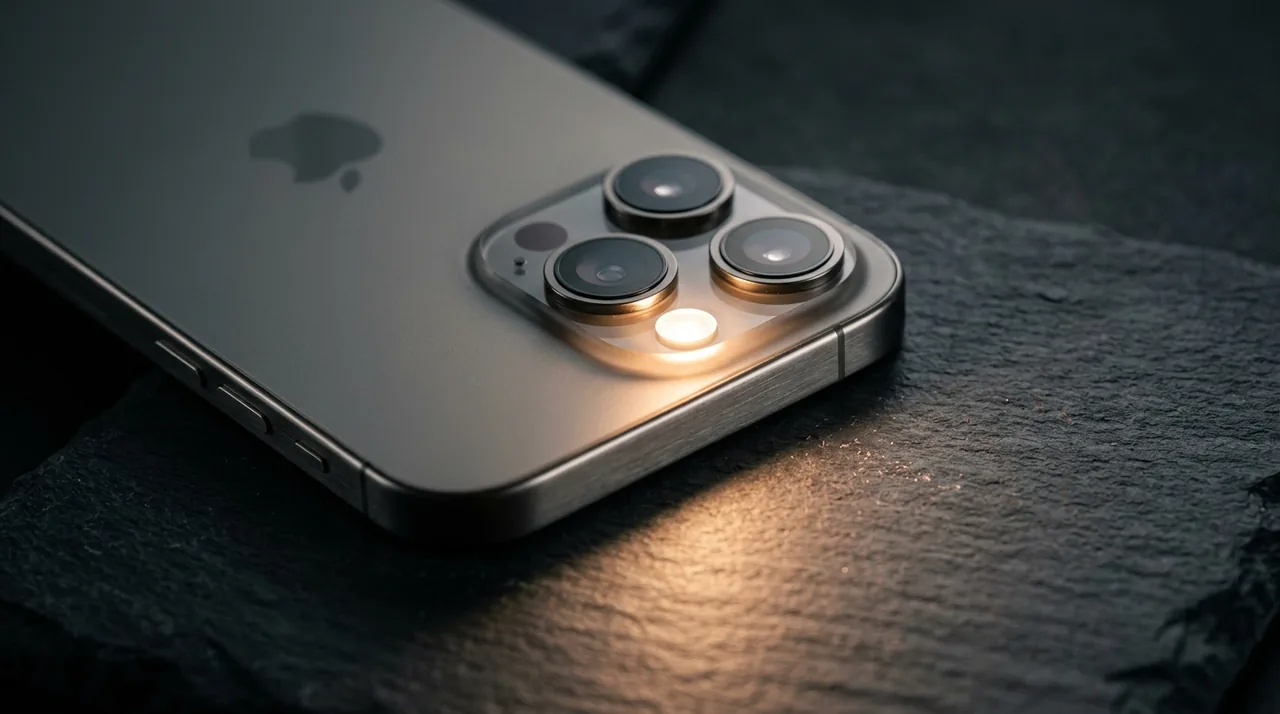
Saying "Hey Siri, Lumos" or "Siri, Lumos" activates your rear LED flash immediately, and "Nox" shuts it back off. Try casting Lumos and Nox to toggle the iPhone flashlight when walking to your car at night, or pair "Accio" with any installed app name such as "Accio Spotify" to open apps hands free. You can browse more Siri Easter eggs and playful voice triggers inside our directory.
Commands from this section
3 commands“Hey Siri, Lumos”
Your iPhone flashlight turns on and Siri acknowledges "Lumos" (say "Hey Siri, Nox" to turn it off).
Cast "Nox" to Turn Off Your iPhone Flashlight
“Hey Siri, Nox”
Your rear LED flashlight shuts off immediately.
Cast "Accio [App Name]" to Summon Any App
“Hey Siri, Accio Spotify”
Siri opens the requested app directly without searching the web.
Why Silencio and Lumos Maxima fail out of the box
Say "Hey Siri, Silencio" on an unconfigured iPhone and Siri usually apologizes or offers web results. The same thing happens with "Lumos Maxima" when you expect full torch intensity.
Every viral clip showing Silencio silencing alerts or dimming a room runs a custom Shortcut. Because Siri matches any workflow title in the Shortcuts app automatically, building custom spell triggers in Apple Shortcuts turns those missing spells into instant triggers.
Pronunciation tip for Lumos and Nox
If Siri hears "Loomis" or "Knox" instead of the spell, pause a beat after saying "Hey Siri" before speaking "Lumos" cleanly.
How Custom Shortcut Names Become Live Siri Triggers
Open Shortcuts
Tap + to create a blank workflow
Add Actions
Focus, Volume, Brightness, or Audio
Rename Title
Pick 1–2 clear spoken words
Speak to Siri
"Hey Siri, [Shortcut Name]"
How to make Silencio enable Do Not Disturb
You only need the standard Apple Shortcuts app installed on your iPhone or iPad. Decide upfront whether Silencio should turn on Focus mode, drop media volume to zero, or execute both together.
- 1Open the Shortcuts app and tap the + icon in the top-right corner.
- 2Tap Add Action, search for Set Focus, and select Turn Do Not Disturb On.
- 3Optional: add Set Volume right beneath it and slide the percentage down to 0%.
- 4Tap the top title bar, pick Rename, type "Silencio," and tap Done.
Commands from this section
1 commandTurn On Do Not Disturb or Any Focus Mode
“Hey Siri, turn on Do Not Disturb for one hour”
Siri activates Do Not Disturb across synced Apple devices and automatically turns it off after the requested duration.
Extra spell Shortcuts worth setting up
Two additional spells turn out surprisingly useful after you configure them. Create "Lumos Maxima" to crank both your rear torch and display brightness to 100% when searching under a sofa, or create "Sonorus" to jump speaker volume up to 80%.
Once synced across iCloud, those Shortcuts run from an Apple Watch or HomePod too, and pair nicely with weird and funny prompts Siri answers out of the box.
- 1Create a blank Shortcut named "Lumos Maxima."
- 2Add Set Flashlight (Turn On), expand its chevron, and drag Brightness to 100%.
- 3Add Set Brightness if you want your screen at full brightness simultaneously, then tap Done.
Commands from this section
2 commandsAdjust Display Brightness Hands-Free
“Hey Siri, set brightness to 50 percent”
Siri adjusts your display brightness slider to the requested percentage immediately.
Trigger Multi-Step Custom Apple Shortcuts by Name
Shortcuts“Hey Siri, Morning Routine”
Siri matches the spoken phrase to your saved Shortcut and executes every chained action automatically.
Apple Support & Reference Sources
Frequently Asked Questions
Quick answers tested across current Apple devices and iOS releases.
Why does Lumos fail on my MacBook or HomePod?
Lumos controls the rear camera LED flash found on iPhones and select iPads. Macs and HomePod speakers lack camera flash hardware, so Siri declines the request there.
Can Siri speak a custom line after running Silencio?
Add a Speak Text action at the bottom of your Shortcut in the Shortcuts app so Siri reads back whatever phrase you type.
Does Accio work for every third-party app?
Accio works reliably for well-known apps whose names speech recognition parses cleanly, though building a dedicated Open App Shortcut fixes tricky titles.
Explore Related Categories & Devices
Related Siri Guides
Shortcuts & AutomationiOS 27 & Shortcuts App6 min
Custom Siri Commands & iPhone Shortcuts (Including Water Eject)
Turn any custom phrase into a working Siri command with Apple Shortcuts, run the 165 Hz Water Eject shortcut safely, and explore Vocal Shortcuts for single-word triggers.
Hidden UtilitiesiOS 27 & iOS 17+6 min
Secret & Hidden Siri Commands That Solve Annoying Problems
Skip generic lists and try practical hidden Siri commands: parked car lookup, hands-free screenshots, Find My audio pings, name pronunciation fixes, and Safari read-aloud.
Fun & Easter EggsiOS 27 & iOS 17+5 min
Funny, Weird & Creepy Things to Ask Siri (Real Responses)
Verified funny, musical, and offbeat Siri prompts that still trigger genuine scripted replies on modern iOS: zero divided by zero, Siri beatbox, Rapper’s Delight, jokes, and stories.