Skip to content
SiriCommands
15 Commands

Device Settings & Controls Siri Commands

Siri reaches deep into iOS, macOS, and watchOS controls that normally take several swipes or Settings menus. From hands-free screenshots and device restarts to fixing how Siri says a contact name, logging Apple Watch medications, or triggering custom Water Eject and Morning Routine Shortcuts, these commands save real friction.

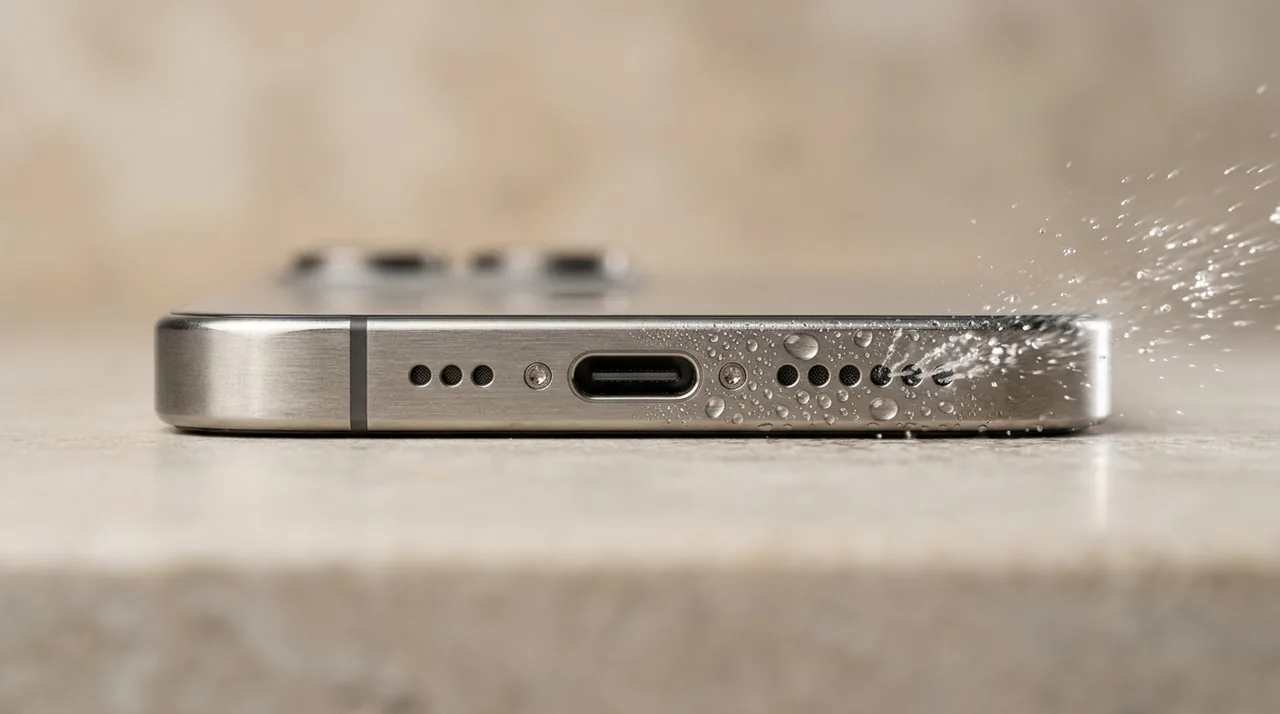
Macro view of titanium iPhone hardware ports and speaker grille
15 commands
iOS 17+

Control Siri Announce Notifications on AirPods & CarPlay

“Hey Siri, announce my notifications”

Siri reads time-sensitive alerts and Messages aloud through compatible AirPods or CarPlay and lets you reply hands-free.

Note: Headphone announcements require supported AirPods (2nd gen+) or Beats headphones.

AirPods, iPhone, iPad +1 moreVisual guide
Shortcuts

Play Water Eject Speaker Tone via Apple Shortcuts

“Hey Siri, Water Eject”

Siri triggers your installed Water Eject Shortcut, plays a pulsed low-frequency tone through the speakers, and clears residual moisture.

Note: Not built natively into iOS: you must first add a Water Eject shortcut in the Apple Shortcuts app (unlike Apple Watch, which has built-in Water Lock eject in Control Center).

iPhone, iPadVisual guide

Take a Hands-Free Screenshot

“Hey Siri, take a screenshot”

The Siri overlay dismisses briefly, flashes the screen capture, and saves the screenshot without pressing any hardware buttons.

Note: Not supported on Apple Watch, HomePod, CarPlay, or Apple TV.

iPhone, iPad, MacVisual guide

Ping a Misplaced iPhone, iPad, or AirPods

“Hey Siri, where is my iPhone?”

Siri confirms it is pinging your device, and the missing hardware begins ringing loudly until you tap Dismiss or press a button.

Note: Both devices must be signed into the same Apple Account with Find My enabled.

HomePod, Apple Watch, iPad +2 more
iOS 17+

Restart Your iPhone or iPad Hands-Free

“Hey Siri, restart my iPhone”

Siri displays a confirmation prompt ("Just to confirm, do you want to restart this iPhone?"). Saying "Yes" or tapping Restart reboots the device.

Note: Introduced in iOS 16; requires confirmation before powering off.

iPhone, iPad

Start or Pause Apple Watch Workouts Hands-Free

“Hey Siri, start an outdoor walk workout”

Apple Watch opens the Workout app, starts the three-second countdown, and begins tracking immediately.

Note: Raise to Speak lets you start a workout on Apple Watch without saying "Hey Siri" first.

Apple Watch
Shortcuts

Trigger Multi-Step Custom Apple Shortcuts by Name

“Hey Siri, Morning Routine”

Siri matches the spoken phrase to your saved Shortcut and executes every chained action automatically.

Note: Every Shortcut in your library is automatically voice-triggerable by its exact title in Shortcuts.

iPhone, iPad, Mac +2 more
iOS 17+

Check and Log Apple Health Metrics Privately On-Device

“Hey Siri, log that I took my medications”

Siri reads or records the metric privately on your Apple Watch or iPhone without uploading Health data to servers.

Note: On-device Health Siri requires Apple Watch Series 9, Ultra 2, or newer (watchOS 10.2+) or supported iPhone/iPad (iOS 17.2+ / iPadOS 17.2+).

Apple Watch, iPhone, iPad

Teach Siri How to Pronounce a Contact’s Name

“Hey Siri, learn how to pronounce [Name]”

Siri listens to you speak the name, offers three audio pronunciations to choose from, and saves your pick to the contact’s Phonetic field.

Note: Works best when the contact is already saved in Apple Contacts.

iPhone, iPad, Mac

Toggle Wi-Fi, Bluetooth & Airplane Mode

“Hey Siri, turn off Bluetooth”

Siri flips the Wi-Fi, Bluetooth, or Airplane Mode setting and confirms its new state.

Note: Turning on Airplane Mode disables cellular and online Siri requests until turned back off manually.

iPhone, iPad, Mac +1 more

Turn On Do Not Disturb or Any Focus Mode

“Hey Siri, turn on Do Not Disturb for one hour”

Siri activates Do Not Disturb across synced Apple devices and automatically turns it off after the requested duration.

Note: Adding a duration ("for one hour" or "until I leave") keeps you from forgetting Focus is still silencing calls later.

iPhone, iPad, Mac +1 more

Adjust Display Brightness Hands-Free

“Hey Siri, set brightness to 50 percent”

Siri adjusts your display brightness slider to the requested percentage immediately.

Note: External monitors connected to Mac may not accept software brightness adjustments from macOS.

iPhone, iPad, Mac
Pro Tips

Tips for Device Settings & Controls

  • When pinging a lost iPhone from HomePod or Apple Watch, the alert chime plays even if your iPhone Silent switch is on.
  • Saying "Hey Siri, restart my iPhone" always asks for a verbal or tapped confirmation so a stray command never reboots mid-call.
  • Use Apple Shortcuts to extend Siri with capabilities Apple does not ship natively, such as Water Eject speaker tones on iPhone.
FAQ

Settings Siri Questions

Can Siri really restart an iPhone now?

Yes. Starting in iOS 16 and continuing through modern iOS, saying "Hey Siri, restart my iPhone" displays a confirmation prompt. Say "Yes" or tap Restart to reboot hands-free.

How do I eject water from my iPhone speakers with Siri?

Apple Watch includes a built-in Water Lock eject tone in Control Center, while iPhone relies on a free Shortcut from the Shortcuts app. Add a Water Eject shortcut and trigger it by saying "Hey Siri, Water Eject."

Can Siri log weight or medications on Apple Watch without sending data to the cloud?

Yes. On Apple Watch Series 9, Ultra 2, and newer (watchOS 10.2+) and modern iPhones (iOS 17.2+), Health queries and logging in supported languages are processed privately on-device.

Related Guides

Setup & Walkthrough Guides

Browse Other Categories