Skip to content
SiriCommands
AirPods45 commands

AirPods Siri Commands

AirPods turn Siri into an eyes-free audio companion while walking, commuting, or working out. Depending on your model, you can summon Siri hands-free by voice, have incoming messages and calls announced automatically, hang up calls without reaching for your pocket, or silently nod and shake your head on AirPods 4 and AirPods Pro 2 or newer.

OS Support: Siri works on all AirPods models; hands-free "Siri" wake word and Head Gestures require AirPods Pro 2, AirPods 4, or newer on iOS 18+.

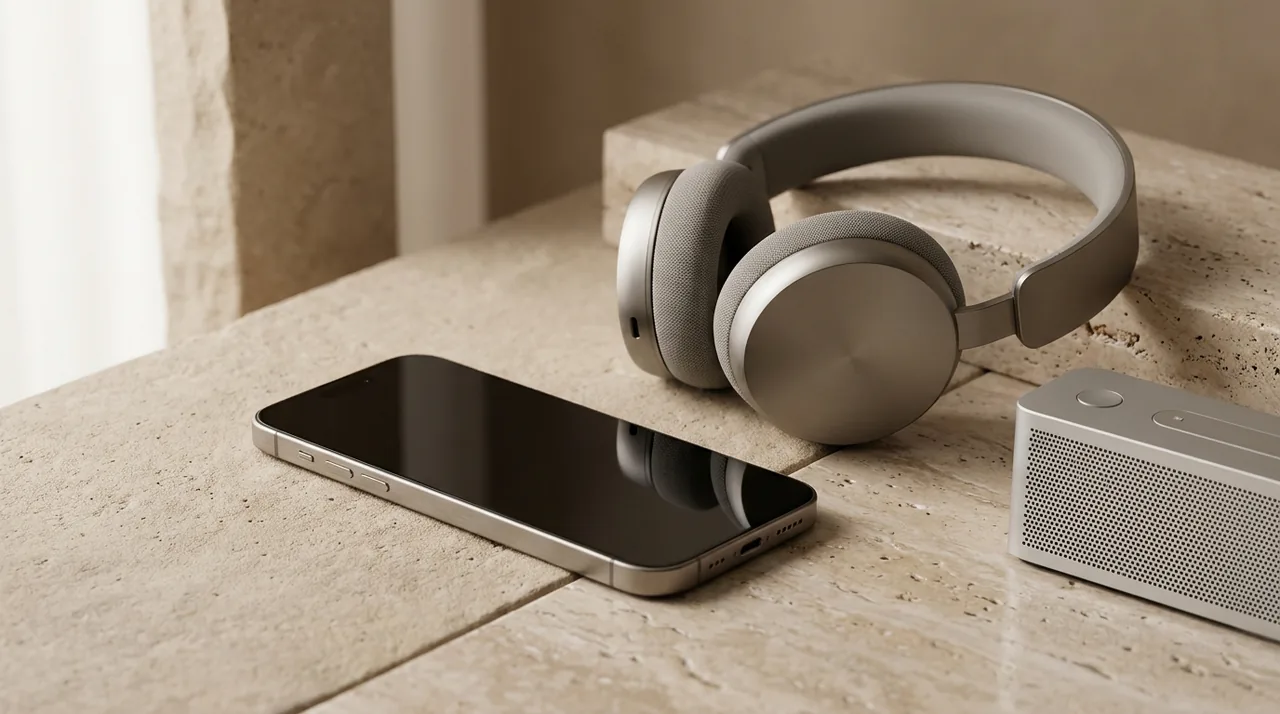
Wireless headphones and iPhone on stone studio surface

How to Activate Siri

  • Say "Siri" or "Hey Siri" hands-free (AirPods 2nd gen and newer)
  • Press and hold the stem (AirPods Pro / AirPods 3 / AirPods 4) or double-tap (AirPods 1st gen)
  • Nod head yes or shake head no to respond to Siri announcements (AirPods 4 & AirPods Pro 2+)

What Works Best

  • Announce Notifications and read incoming messages automatically in your ears
  • Respond silently with Head Gestures (nod yes to answer/reply, shake no to decline/dismiss)
  • Hang up active phone calls by voice ("Hey Siri, hang up")
  • Control Spotify or Apple Music, check AirPods battery level, and trigger Shazam

Device Limitations

  • AirPods rely on a connected iPhone, iPad, Mac, or Apple Watch to execute Siri requests.
  • Head Gestures require iOS 18+ and AirPods 4 or AirPods Pro 2 or newer.
  • First-generation AirPods require a double-tap gesture rather than hands-free "Hey Siri."
AirPods Index

All AirPods Commands

Filter AirPods commands by category, OS requirement, or search phrase.

45 commands

Identify Any Song Playing Around You with Shazam

“Hey Siri, what song is playing?”

Siri listens to the background audio for a few seconds, displays the track title and artist, and saves the match to your Shazam history.

Note: Requires an active internet connection for acoustic fingerprinting.

iPhone, iPad, Mac +4 moreVisual guide

Listen to Unread Text Messages Hands-Free

“Hey Siri, read my unread messages”

Siri speaks the sender’s name and message text aloud and pauses to let you dictate an immediate reply.

Note: Requires unlocking iPhone if Allow Siri When Locked is off or if notification previews are hidden while locked.

iPhone, iPad, Mac +4 moreVisual guide

Broadcast Voice Intercom Messages to HomePods & Family Devices

“Hey Siri, Intercom "Dinner is ready"”

Your spoken message plays across targeted HomePods and Apple devices, and family members can reply right back via Intercom.

Note: Intercom must be enabled inside the Apple Home app under Home Settings > Intercom.

HomePod, iPhone, iPad +3 more

End an Active Phone or FaceTime Call by Voice

“Hey Siri, hang up”

Siri immediately disconnects the active phone or FaceTime call.

Note: Requires iPhone 11 or newer (iOS 16+) or supported AirPods/Beats, and Call Hang-Up enabled in Siri settings.

iPhone, AirPods

Find Your Parked Car Automatically in Apple Maps

“Hey Siri, where did I park my car?”

Siri displays the exact Parked Car pin on Apple Maps and offers walking directions right back to your parking spot.

Note: Requires Show Parked Location turned on in Settings > Apps > Maps and pairing your iPhone with CarPlay or car Bluetooth.

iPhone, Apple Watch, CarPlay +1 more

Ping a Misplaced iPhone, iPad, or AirPods

“Hey Siri, where is my iPhone?”

Siri confirms it is pinging your device, and the missing hardware begins ringing loudly until you tap Dismiss or press a button.

Note: Both devices must be signed into the same Apple Account with Find My enabled.

HomePod, Apple Watch, iPad +2 more

Run Multiple Named Timers Simultaneously

“Hey Siri, set a pasta timer for 10 minutes”

Siri creates a timer named "Pasta" counting down from 10 minutes alongside any other running timers.

Note: Multiple simultaneous timers on iPhone, iPad, and Watch require iOS 17 / iPadOS 17 / watchOS 10 or newer (HomePod supported multi-timers earlier).

iPhone, iPad, Mac +3 more

Send Messages or Call on WhatsApp

“Hey Siri, send a WhatsApp message to Alex”

Siri confirms the recipient on WhatsApp, previews your dictated message, and sends it upon confirmation.

Note: Requires WhatsApp installed and enabled under iPhone Settings > Apps > WhatsApp > Siri.

iPhone, iPad, Apple Watch +2 more

Set Location-Based Geofence Reminders

“Hey Siri, remind me to check the mail when I get home”

Siri creates a location-tagged reminder tied to your Home, Work, car Bluetooth, or named store address.

Note: Requires Location Services turned on for Reminders under Settings > Privacy & Security > Location Services.

iPhone, iPad, Mac +3 more
FAQ

AirPods Siri Questions

Which AirPods support nodding or shaking your head for Siri?

Head Gestures work on AirPods 4, AirPods 4 with Active Noise Cancellation, and AirPods Pro 2 (and newer models) paired with an iPhone or iPad running iOS 18 or later.

How do I check my AirPods battery using Siri?

Say "Hey Siri, what’s my AirPods battery level?" and Siri reads back the remaining charge percentage for your earbuds and charging case when open.

Guides

Recommended Guides for AirPods

Explore Other Apple Devices