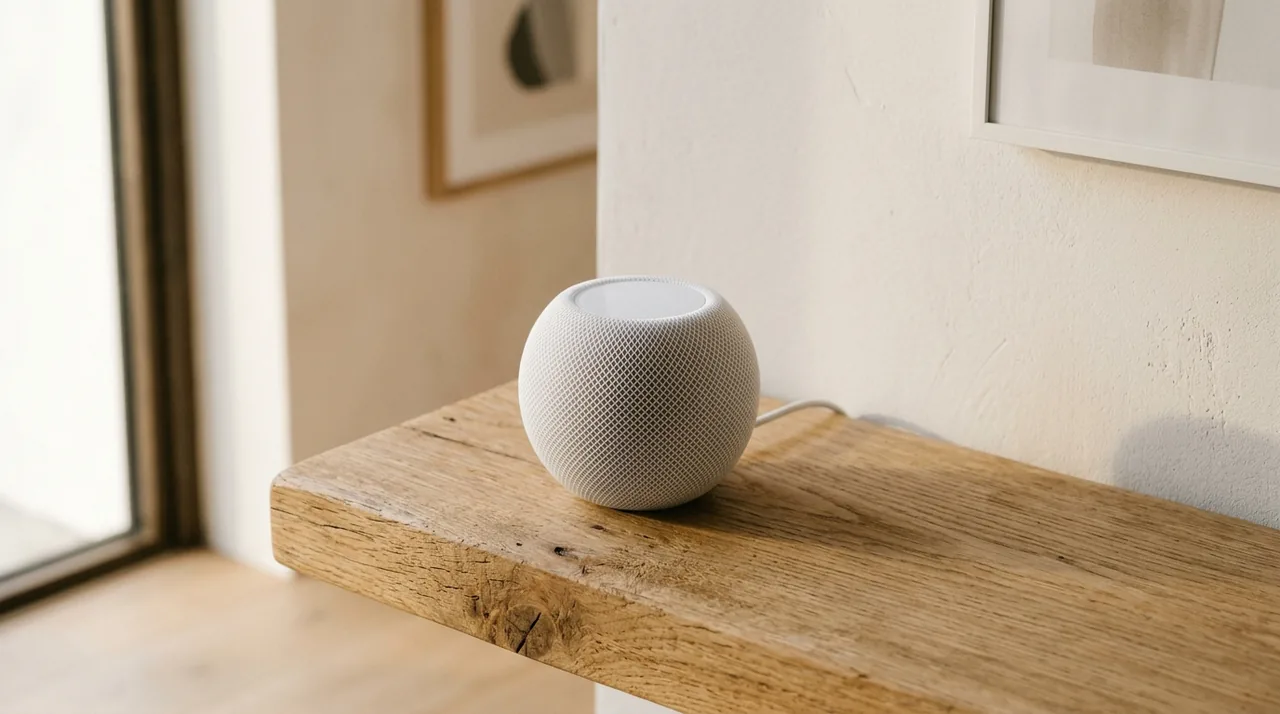
Setting alarms and timers is consistently the number-one Siri use case because voice beats unlocking a screen and scrolling wheels. You can run multiple named timers simultaneously on iPhone, iPad, Apple Watch, and HomePod, check remaining time from across the room, or clear old alarms in one sentence.
/
8 commands
iOS 17+
Run Multiple Named Timers Simultaneously
“Hey Siri, set a pasta timer for 10 minutes”
Siri creates a timer named "Pasta" counting down from 10 minutes alongside any other running timers.
Note: Multiple simultaneous timers on iPhone, iPad, and Watch require iOS 17 / iPadOS 17 / watchOS 10 or newer (HomePod supported multi-timers earlier).
iPhone, iPad, Mac +3 more
Clear Every Saved Alarm at Once
“Hey Siri, delete all my alarms”
Siri asks for confirmation and permanently removes all saved alarms (excluding Sleep schedule alarms).
Note: If you only want to disable them temporarily while keeping your times saved, say "turn off all my alarms" instead.
iPhone, iPad, Apple Watch +1 more
Set a Quick or Labeled Alarm
“Hey Siri, set an alarm for 6:30 AM”
Siri confirms the new alarm time and activates it inside the Clock app (or HomePod alarm list).
Note: Specify AM or PM when setting alarms near midday or evening so Siri does not pick the next occurrence unexpectedly.
iPhone, iPad, Mac +3 more
Check World Clock Time Zones & Sunset Times
“Hey Siri, what time is it in Tokyo right now?”
Siri speaks and displays the current local time or converted meeting time in the requested city.
iPhone, iPad, Mac +5 more
Check, Pause, or Cancel Running Timers
“Hey Siri, how much time is left on my pasta timer?”
Siri speaks the exact remaining duration on the named timer or stops it immediately.
Note: If multiple timers are running without labels, Siri asks which duration you want to pause or cancel.
iPhone, iPad, Mac +2 more
Disable All Active Alarms Without Deleting Them
“Hey Siri, turn off all my alarms”
Siri turns off all enabled alarms and confirms they are disabled.
Note: Remember to re-enable recurring weekday alarms before your next workday.
iPhone, iPad, Apple Watch +1 more
Launch and Start the Clock Stopwatch
“Hey Siri, start a stopwatch”
Siri opens the Clock stopwatch view and begins counting upward.
Note: Stopwatch lap marking still requires tapping the Lap button on screen.
iPhone, iPad, Apple Watch
Set a Recurring Weekday Wake-Up Alarm
“Hey Siri, wake me up at 7 AM every weekday”
Siri adds and enables a recurring 7:00 AM alarm set to repeat every Monday through Friday.
Note: For full Sleep Focus scheduling in Apple Health, configure Sleep Schedules in the Health app.
iPhone, iPad, Apple Watch +1 more
Pro Tips
Tips for Alarms, Timers & Clock
Give kitchen or laundry timers clear names ("set a pasta timer for 9 minutes") so you can pause or check each one individually.
Remember the difference between "turn off all my alarms" (keeps them saved for later) and "delete all my alarms" (removes them permanently).
Use "cancel" when you only want to stop a single named timer without touching other active countdowns.
FAQ
Alarms & Timers Siri Questions
Can Siri run more than one timer at the same time?
Yes. iOS 17+, iPadOS 17+, watchOS, and HomePod all support multiple named timers at once. Say "Set a laundry timer for 45 minutes" and "Set a tea timer for 4 minutes" and track each separately.
Can I turn off a ringing HomePod timer from my iPhone?
When a timer rings on HomePod, say "Hey Siri, stop" toward the speaker, or open the Home app and tap the HomePod tile to dismiss its active timer.
Does "delete all my alarms" ask for confirmation?
Yes. Siri asks you to confirm before wiping every saved alarm so you do not accidentally clear weekday wake-up schedules.